
Changelog
Releases
Unified search, case opening Webhook, and improved performance
Search Update
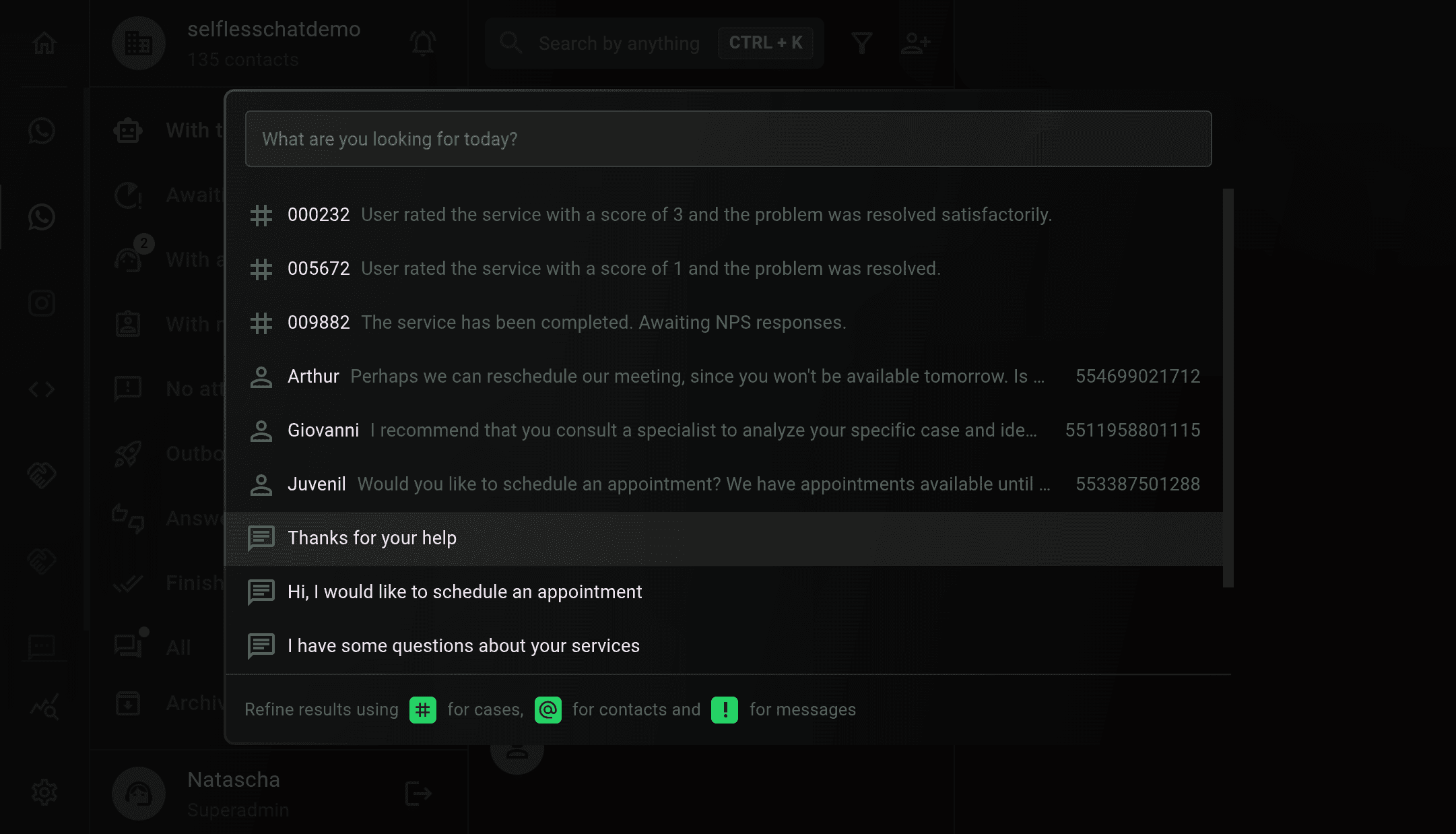
We’ve updated the search mechanisms within the platform, which now allow users to find conversations more easily in a unified interface. To access the new search center, simply click the button next to the search bar. You can also use the keyboard shortcut Cmd+K (Mac) or Ctrl+K (Windows).
The search supports both general terms and refined searches using prefixes:
#for case-specific searches (case ID and summary)@for contact-specific searches (name, description, last message, and phone number)!for message-specific searches (message content)
The interface also allows filtering results by channel and visually highlights matched terms. Upon selecting a result, users are taken directly to the corresponding item whether it’s a case, message, or contact.
Performance Improvements
The platform’s performance has been optimized in this key areas:
- Tag list virtualization now prevents freezing when displaying all available tags for contact assignment.
- Navigation between contacts was improved using new context strategies, reducing excessive processing.
- The architecture for updating each contact’s state in the contact list was revised, resulting in a smoother and faster experience.
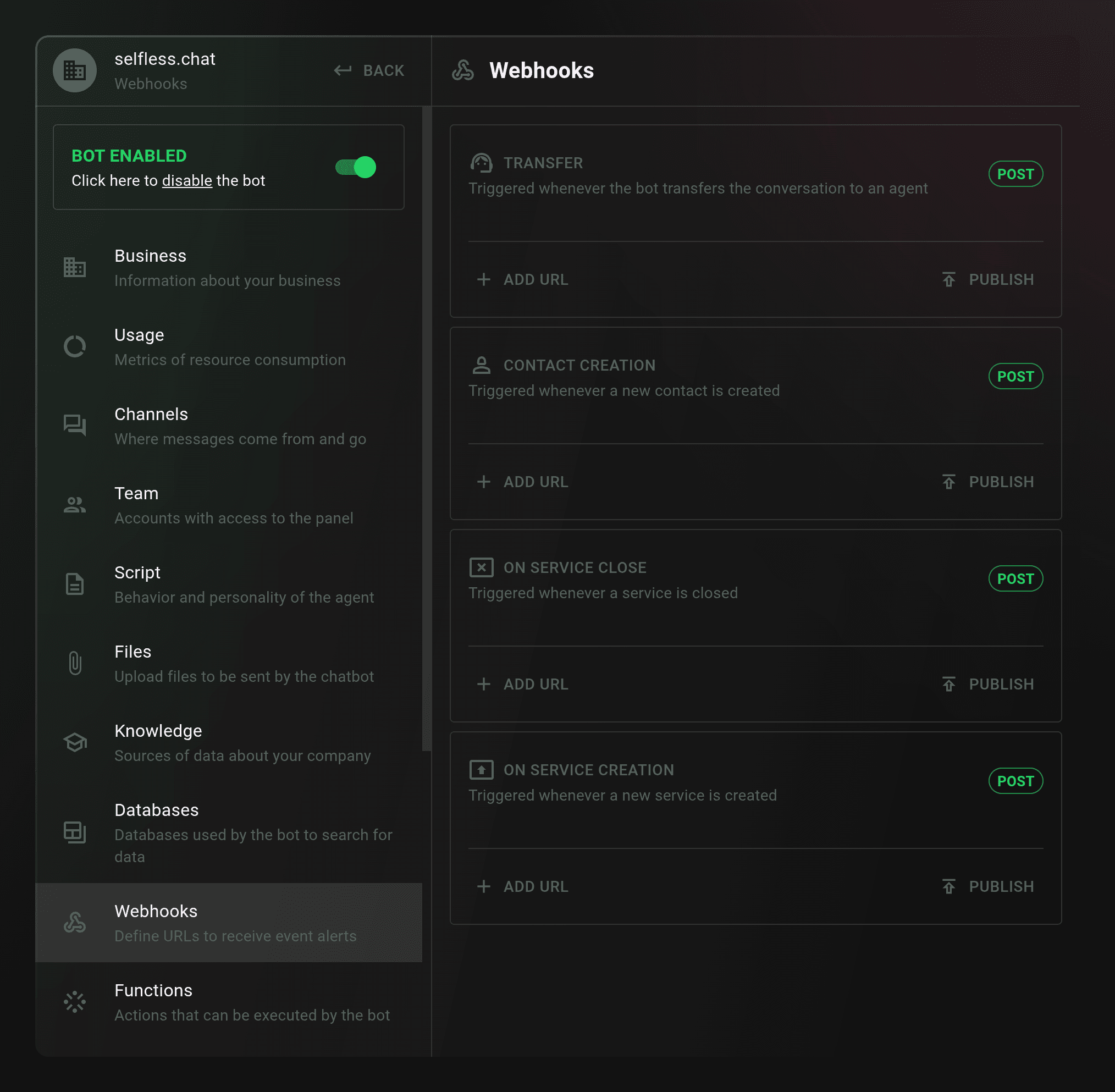
New Webhook: Case Opening
A new webhook event, case-started, has been added. It is automatically triggered whenever a new case is opened. This webhook is now available in the Webhooks Settings section and expands the list of supported events. Until now, the available webhook triggers included: overflow, contact creation, and case closing.
Fixes and Adjustments
- Agents with an active session can now take over conversations that are in the Finished or In NPS status.
- A fix was applied to outbound message states: when initiating a conversation with a contact, it will appear in the With me tab, even without an active session. If no session is created after 24 hours (because the contact didn’t respond), it will move to the Outbound tab.
- Fixed a bug that prevented audio recordings when using the Safari browser.
New contact filters and other fixes
New contact filters
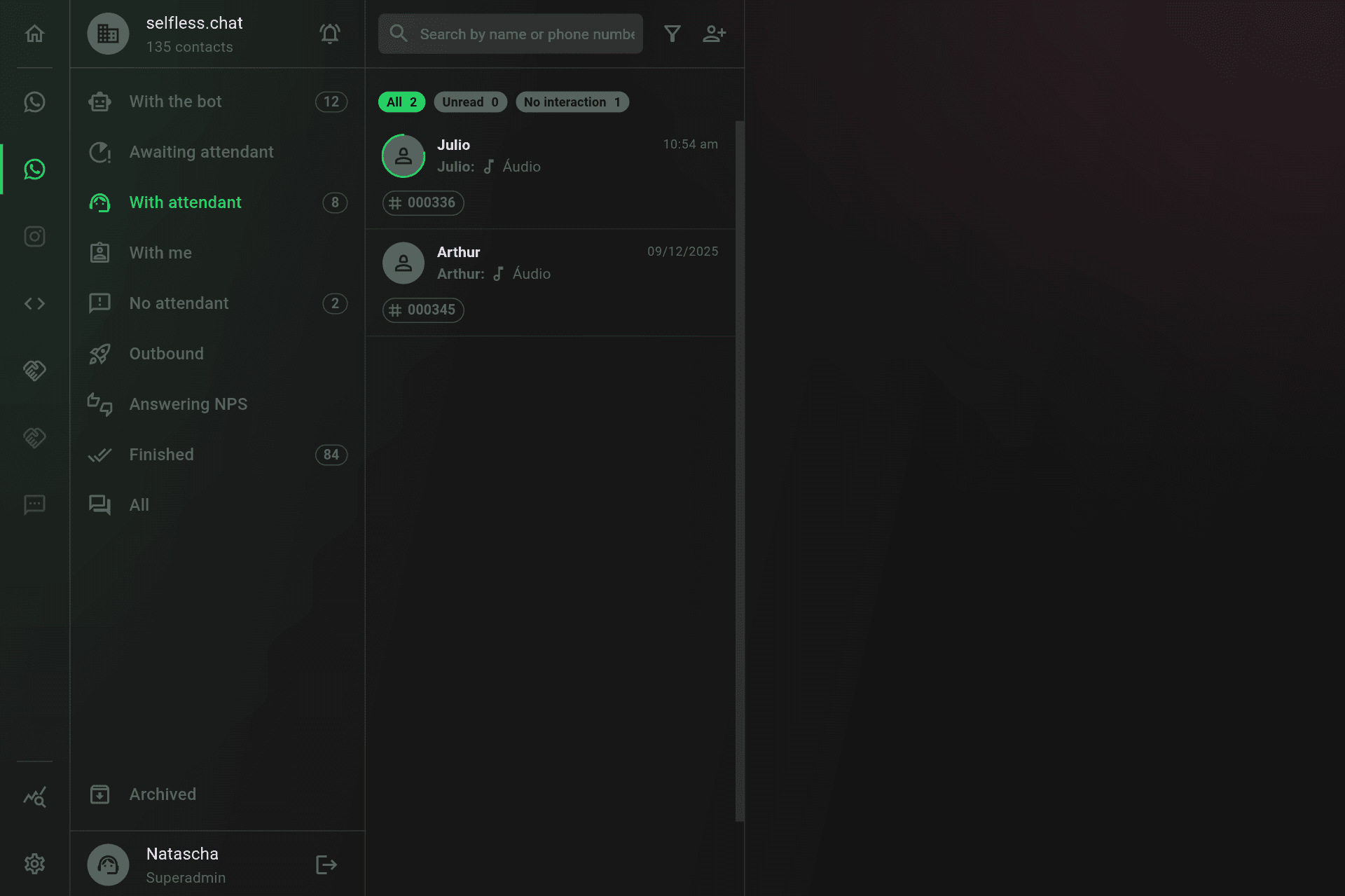
We’ve added new contact filters to make it easier to view the list according to three criteria: all, unread, and no interaction. The all filter displays all conversations, the unread filter shows only conversations that have not yet been viewed by an agent, and the no interaction filter shows conversations where specific rules apply: a customer message is the last one in a conversation and was sent more than 30 minutes ago. This last filter is designed to highlight conversations that need a reply more urgently due to the waiting time.
The goal is to make navigation clearer so that unread and inactive messages can be more easily found. This adds more filtering possibilities, since the different lists already filtered contacts based on conversation status, and it was already possible to filter conversations by tags.
The new filters are located at the top of the contact list—just click on them to activate. It’s important to note that these new filters do not apply to the Finished conversations list.
In addition to the new filters, we also changed the rule for viewing unread messages. Now, users with the Administrator or Supervisor role who open a conversation no longer change its status to “read” automatically. Only agents who enter a conversation will modify the message’s read status.
The goal is to make navigation more seamless, allowing administrators and supervisors to monitor conversations without affecting their read status, so this information remains available to agents.
Emojis in conversations and templates
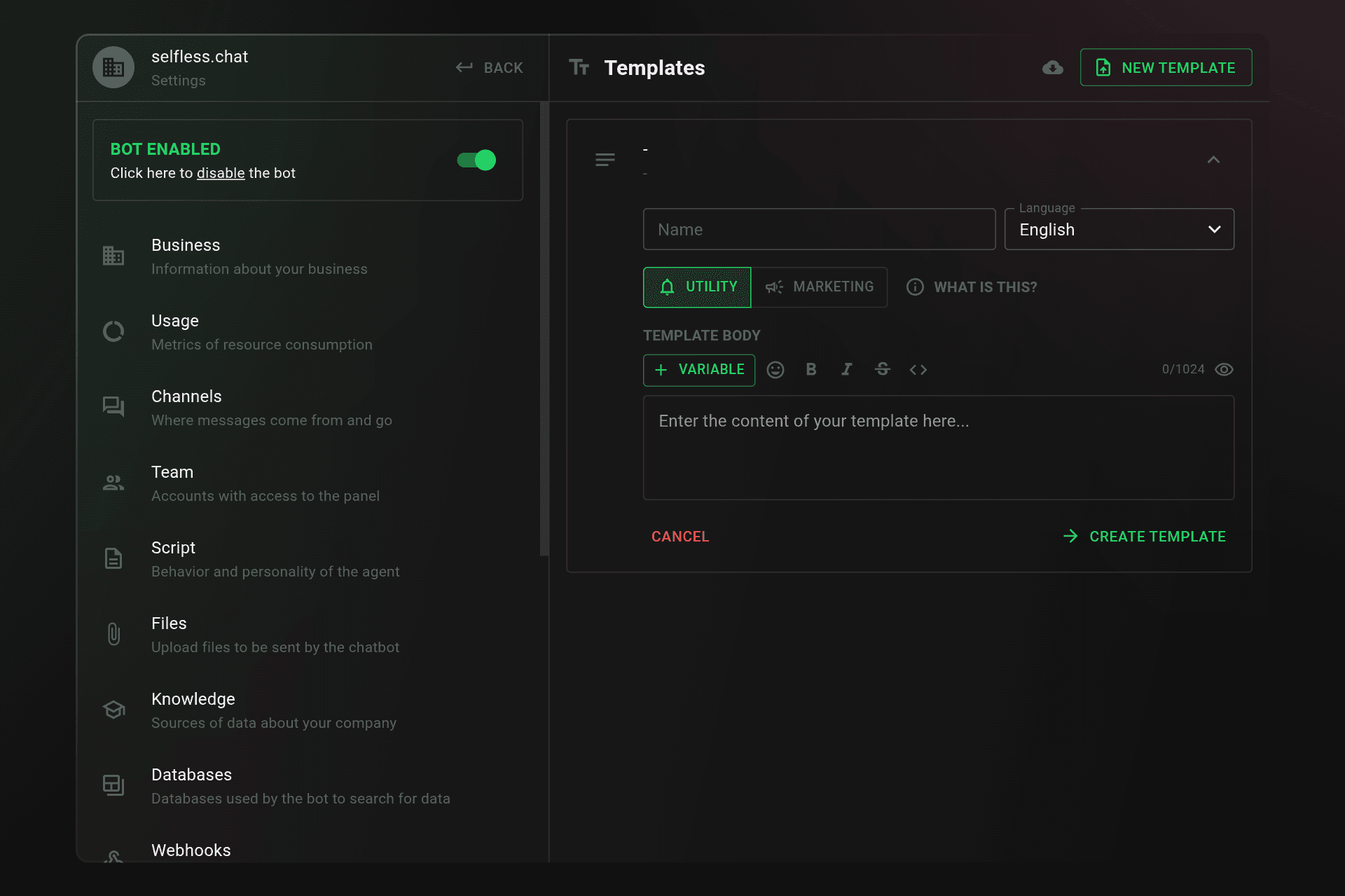
To allow greater customization of messages sent through the platform, it’s now possible to add emojis. To insert emojis in a message during a conversation, simply click the icon next to the file icon and select the desired emoji. To add emojis to templates, click the emoji icon in the text editor toolbar. It was already possible to add bold, italic, underline, and links to templates.
Finally, some platform functionality fixes were also implemented.
Message Sending Error Status, Infrastructure Improvements, Conversation Options and Notifications
This update includes enhancements to existing components on the platform, such as the viewing and editing of certain information and the usability of various functions.
Improvements to Audio Message Sending and Receiving Functionality
The usability of the audio message sending and receiving has been updated. Among the improvements are the ability to listen to the audio before sending it, as well as to pause and resume the recording. In addition, it is now also possible to download the audio directly from the conversation window on the platform.
Improvements to Conversation Options
The tag removal modal has been updated to improve usability. The protocol number is now also displayed in the contact list view, making it easier to locate this information directly from the list.
Additionally, the lists now show the number of contacts in each status in the menu, making it easier to view the total number of conversations being handled by an agent, waiting for service, and so on. The goal is to make navigation more efficient and the information display clearer.
Message Sending Error Status
This new feature allows users to view message sending errors directly within the conversation. This makes it easier to identify and resolve internal or external issues on the platform, such as payment-related problems. Now, when a message fails to send, a pop-up will provide a clearer explanation of the error.
Notifications
With this update, it is now possible to control the volume of incoming message notifications on the platform.
Infrastructure improvements have also been made to the server and database, resulting in a smoother navigation experience and a sense of faster message sending.
New interface, department transfer, image reading, and more
This update brings several highly anticipated features. Let’s go through them:
Revamped Dashboard Interface
The main highlight of this release is the new dashboard interface. Designed to make it easier to view and filter ongoing conversations, it introduces a new left-hand sidebar that categorizes chats into multiple filter views.
Each menu item filters conversations based on its title. The list of views includes:
- With the Bot: Conversations currently being handled by the chatbot.
- Awaiting Attendant: Transferred to a department but not yet picked up. Filtered by department.
- With Attendant: Already assigned to an agent. Lists all agents and loads their active chats.
- With Me: Conversations currently handled by the logged-in user.
- Outbound: Conversations initiated by outbound messages.
- Answering NPS: Completed chats currently in an NPS feedback flow.
- Finished: Conversations closed by the bot or by agents.
- All: Displays all conversations, regardless of status.
- Archived: Displays archived conversations that won’t be handled by the bot or shown in other lists.
The new “Archive Conversation” option helps prevent inappropriate or unwanted contacts from reappearing and triggering the chatbot every time they send a message.
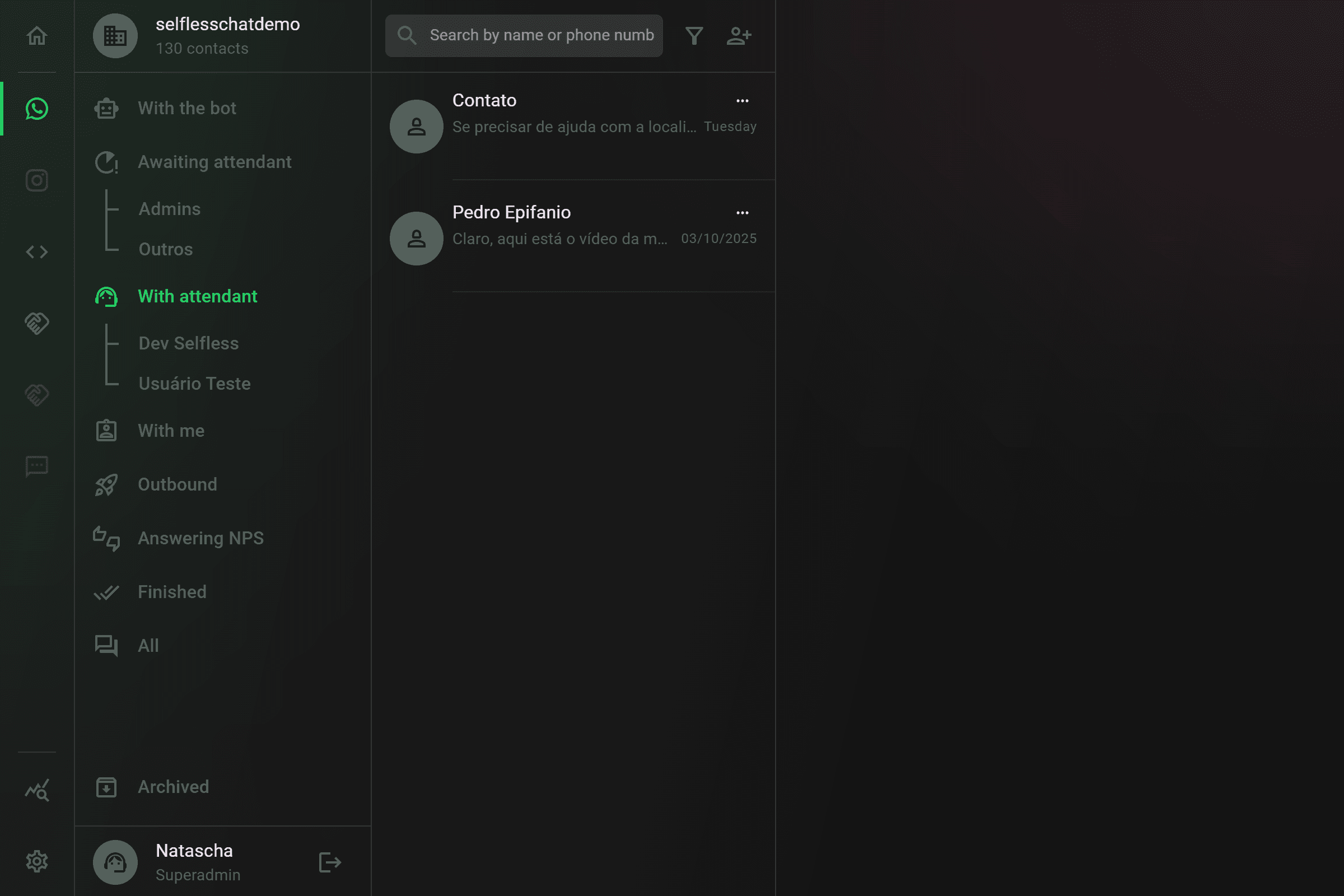
We hope the new dashboard makes it much easier to locate contacts and understand conversation volumes by department, agent, and other relevant filters.
Release Notes Pop-up
From now on, every time there’s a new update, you’ll see a pop-up notification when opening the dashboard. It brings a summary of what’s new—whether it's new features like Webhooks or enhancements to existing tools such as the Receita or Automation Triggers.
You can also access the full release history on our website.
Department-based Transfer
You can now configure transfers to go to a department, rather than a specific agent.
When this happens, the conversation enters a special state called Waiting for Agent, where only users assigned to that department can claim the chat.
To activate this feature, go to My Business and click on Assign to Department.
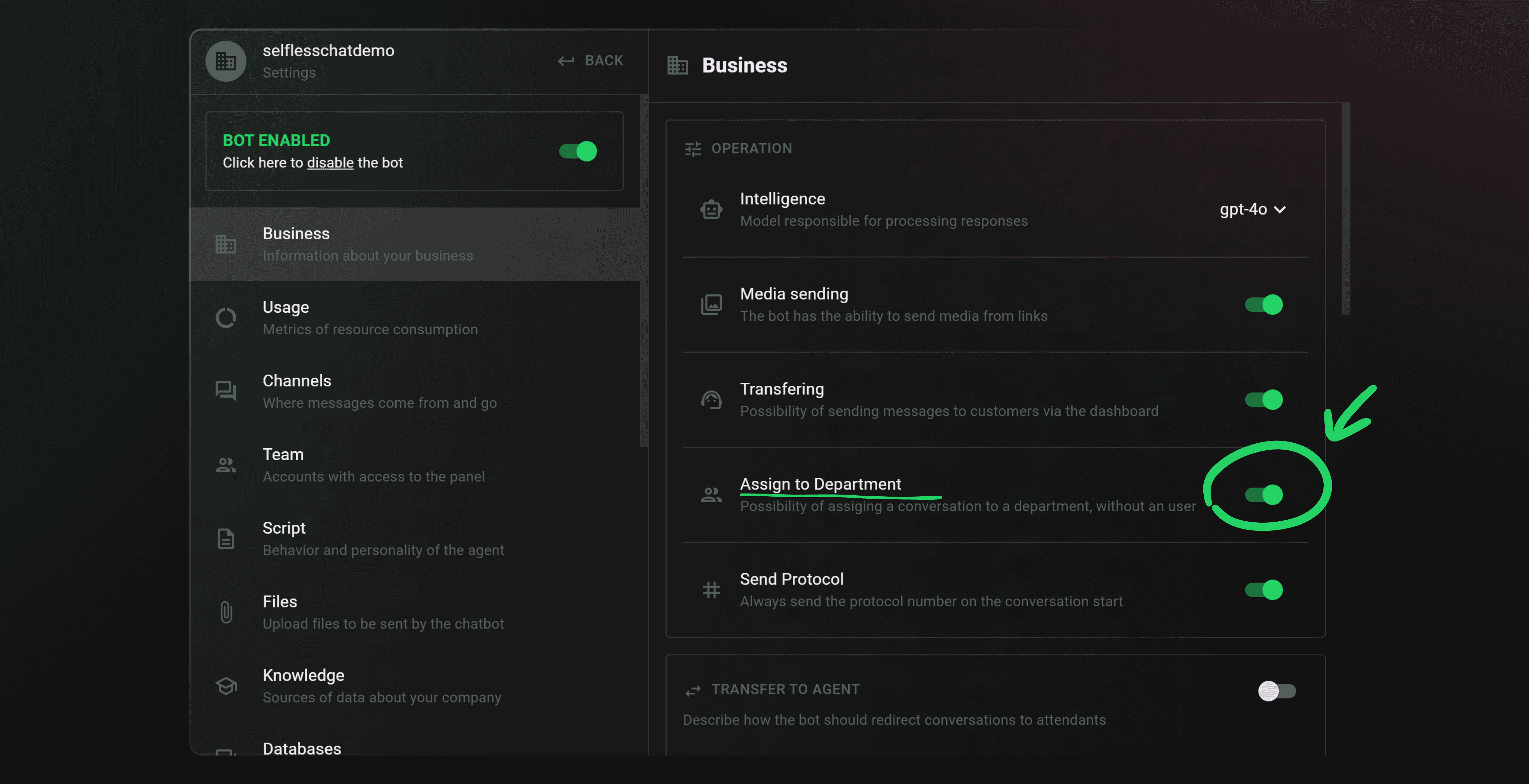
Image Understanding by the Chatbot
The chatbot can now understand the context of received images, in a similar way it already processes audio messages.
This is especially useful for businesses that frequently receive images and previously experienced chatbot disruptions due to lack of interpretation. Now, conversations flow more naturally.
Contact Description Field
In addition to comments and summaries, which help human agents understand the context of the conversation, it’s now possible to add a dedicated description to each contact.
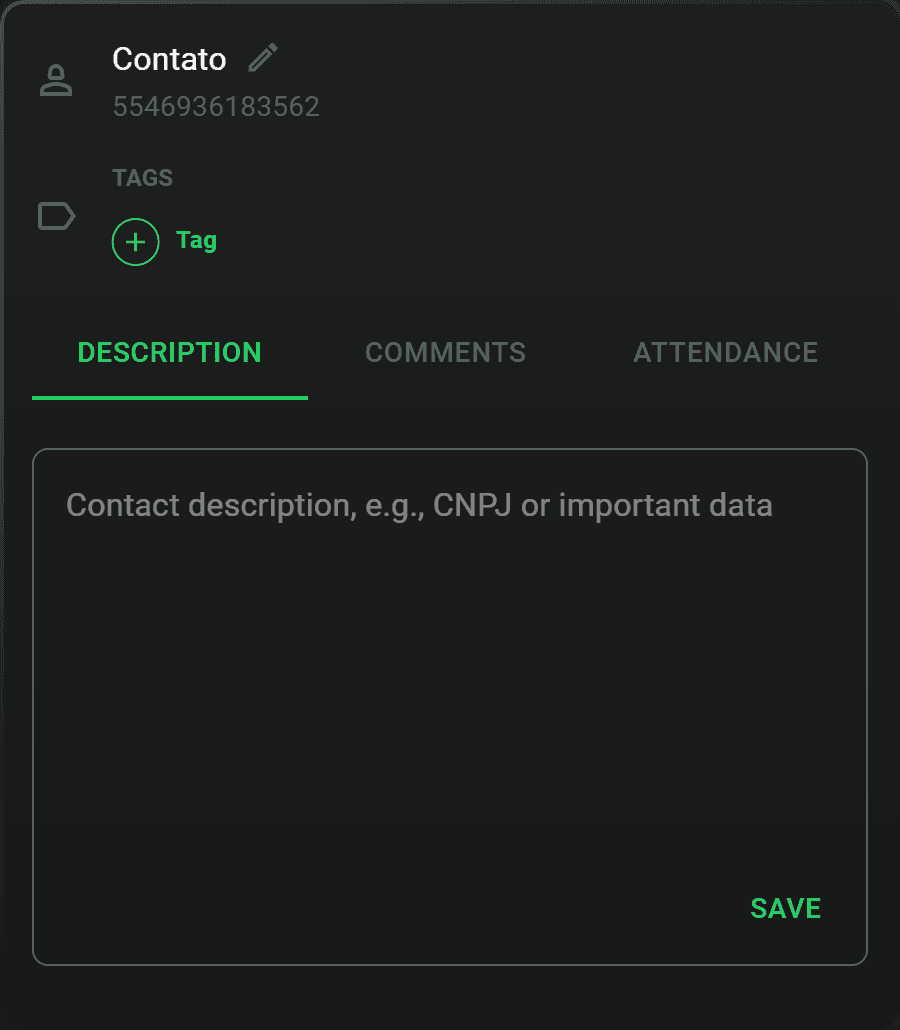
This field is ideal for storing useful information that doesn’t belong in the comments section.
New Webhook: End of Chat
For developers, we’ve added a new webhook that is triggered when a chat is finished, either by an agent or by the bot.
This webhook can be integrated into various external workflows. For example:
- Update CRMs with chat data and status
- Log finished chats in BI platforms or spreadsheets
- Send follow-up emails based on conversation type
- Create tickets in helpdesk or issue tracking tools
- Trigger internal alerts based on tags, categories, or outcomes
The structure is designed to make it easy to parse and integrate with other systems.
Image Upload via Ctrl+C / Ctrl+V + Zoom Feature
You can now paste images directly into the chat using Ctrl+C / Ctrl+V — no need to upload files manually anymore.
This greatly streamlines image sharing and speeds up agent workflows.
Additionally, image zooming is now supported within the chat window, working similarly to WhatsApp’s media viewer.
Last but not least, a fix was also implemented for cases where duplicate contacts could appear, which might cause inconsistencies with the details of an existing contact, for example, when a broadcast message was sent to a number already on the list. From now on, whenever there are multiple contacts with the same number, their conversations will be automatically merged in chronological order, keeping all information safe and organized.
Template Management, Support Protocols, and Bulk File Upload
On August 27, 2025, selfless.chat was updated with three important improvements that directly impact productivity and customer service management: creating templates directly from the dashboard, protocol visualization to each attendance with conversation summaries, and uploading multiple files simultaneously via the Asset Manager.
A key highlight of this release is that support protocols can now be accessed from the frontend — something that wasn’t possible until now. See the full details below:
Creating templates directly from the dashboard
It is now possible to create and manage templates directly through selfless.chat dashboard, without needing to rely on external platforms or support assistance.
Templates are ready-to-use messages that can be applied at various points in the customer journey, such as:
- Messages with order information or other updates
- Initiating conversations through marketing messages
This feature gives teams greater agility and autonomy when using templates, removing the need to create new ones through Meta Business Manager.
Protocol visualization and attendance summaries
With this update, every initiated attendance automatically generates a unique protocol number, now visible directly in the dashboard. This protocol acts as a unique identifier for the customer interaction, enabling better tracking and a centralized history. Each session generates a new case and a therefore a new attendance protocol — even within the same conversation thread — making information easier to find.
Now, by clicking on a contact’s name, it’s also possible to:
- View the protocol number linked to that conversation
- Access a summary of the service provided
This data is particularly useful for supervisors, reopening past tickets, internal audits, and operations that require protocol generation for each support case.
Bulk file upload in the Asset Manager
The platform’s Asset Manager now allows the upload of multiple files at once, streamlining the process of managing media and documents used in automated services.
Before this release, files had to be uploaded one by one, requiring extra time and repetitive steps.
Now, with bulk upload, simply select all the files you want and upload them in a single action.
All uploaded files still generate unique links, which can be integrated into bot messages or used in automated campaigns as needed.
These improvements are part of our ongoing commitment to boosting the efficiency and autonomy of the teams using selfless.chat to scale and organize their customer service operations.